Gloss · Satin · Matte

Car Wrap Visualizer

A wrap is a big commitment in time and money, and a small film sample does not show how the colour will sit on a long hood or a curved rear quarter. A moving preview on your own car closes that gap.

Upload a photo, choose a finish and a colour, and the studio renders a short clip that keeps the body lines, wheels and trim while changing the film. Share it with your wrap shop as a reference, then confirm with real film samples.

Clips on this page are AI-generated previews. They are fictional and not a record of a real event.

Updated 20 October 2026

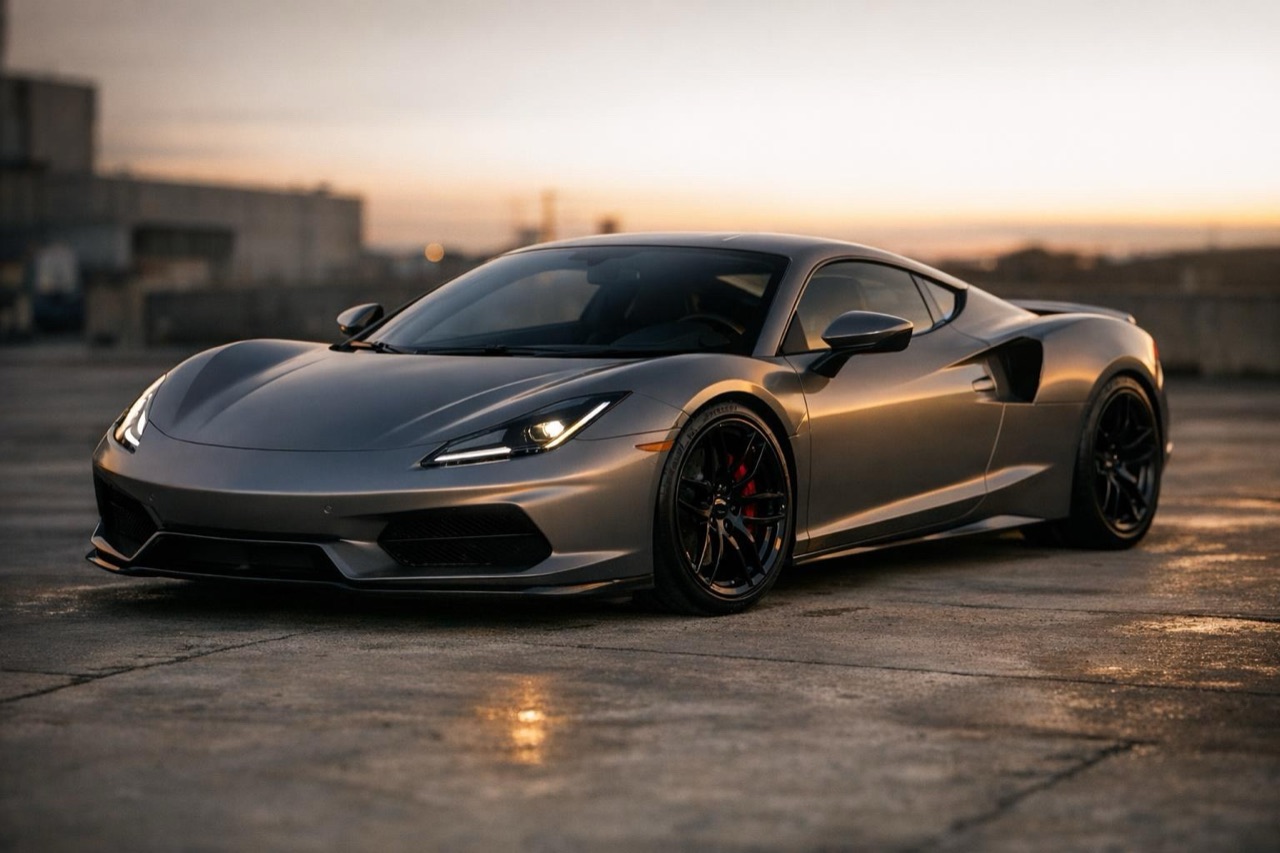
A car with a satin grey wrap on a city street, AI wrap visualizer still
Length
5–12 seconds
Resolution
480p · 720p · 1080p
Aspect ratio
9:16 · 16:9 · 1:1
Watermark
None on paid renders
Model
Seedance 2.0
Moderation
SeeAPI, fail-closed

Finish is the whole point

Gloss, satin and matte change how the body lines read. The preview names the finish explicitly instead of treating colour as a flat fill.

Your car, your lines

The body shape, wheels and trim stay as photographed, so you are judging the wrap on the car you actually own.

A reference for the shop

Send the clip with the colour name and finish. It communicates a direction faster than a paragraph and a screenshot.

How it works

  1. 1

    Photograph the car clean

    A wrap preview magnifies dirt, swirls and panel gaps. Wash the car and shoot in soft daylight with the whole body in frame.

  2. 2

    Choose the finish first

    Decide gloss, satin or matte before you decide the colour. The finish changes the highlight, and the highlight is what makes a wrap look expensive.

  3. 3

    Name the colour precisely

    Deep forest green, warm cement grey, bright signal yellow. A vague colour name gives a vague preview.

  4. 4

    Render a daylight and a night version

    The same wrap can look flat at noon and rich at night. Two scenes give you a fairer sense of the colour.

Start from a tested prompt

Each prompt is complete: subject, scene, camera and what must not change. Copy it or open the studio with it pre-filled.

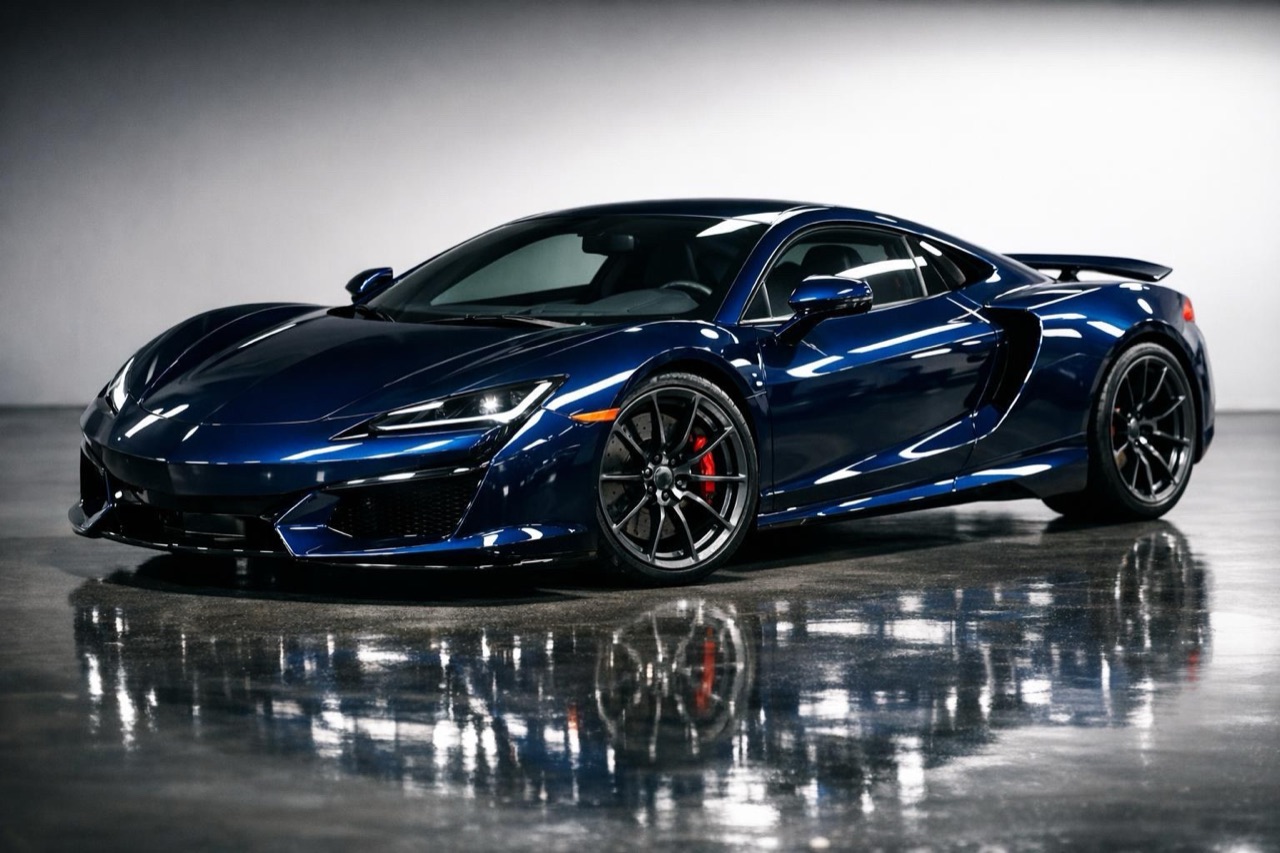
A car with a gloss deep blue wrap in a studio, AI wrap preview frame

Gloss Deep Blue

A deep gloss blue with a sharp highlight.

Prompt (English)

Use the car in the uploaded photo as the single hero. Change the body to a deep gloss blue wrap with a sharp mirror highlight and strong reflections. Keep the body shape, wheels, trim, badges and window tint exactly as photographed. A clean studio with a polished floor and a large soft overhead light. The camera orbits slowly around the front three-quarter view. No people, no text, no watermark. Vertical 9:16.

Use in studio

Satin Cement

A warm cement grey with a soft satin sheen.

Prompt (English)

Use the car in the uploaded photo as the single hero. Change the body to a warm cement grey satin wrap with a soft brushed highlight and no mirror reflection. Keep the body shape, wheels, trim and badges exactly as photographed. A concrete yard at dusk with low directional light. The camera tracks slowly along the side of the car. No people, no text, no watermark. Vertical 9:16.

Use in studio

Matte Forest

A deep matte green with a flat, dry finish.

Prompt (English)

Use the car in the uploaded photo as the single hero. Change the body to a deep matte forest green wrap with a flat dry finish and a subtle sheen along the shoulder line. Keep the body shape, wheels, trim and badges exactly as photographed. A tree-lined road in soft overcast daylight. The camera performs a slow push-in from the front three-quarter angle. No people, no text, no watermark. Vertical 9:16.

Use in studio

Why a moving preview beats a swatch

A wrap film sample is flat. A car is not. The same film stretches over a compound curve, catches light along a shoulder line and falls into shadow under the wheel arch. A moving render shows those transitions, which is where a colour either works or falls apart.

This is especially true for satin and matte films. Their whole appeal is a soft, directional highlight, and a still image can make them look like flat paint. Motion reveals the finish.

Choosing a wrap colour for resale

If resale matters, stay close to a colour the underlying paint can live with and avoid a wrap that hides the door shuts and panel gaps badly. A neutral gloss or satin in grey, white, black or blue is easier to sell than a loud colour.

If the car is a keeper, use the preview to test the loud option before you commit. The cost of a render is trivial next to the cost of removing a wrap you dislike.

What to send your wrap shop

Send the clip, the colour name and the finish, plus a note about the look you want: deep and rich, light and flat, or metallic and sharp. Ask for two or three film samples that match the direction.

The preview does not replace a physical sample. It narrows the shortlist so the samples you order are the right ones.

Questions people ask

Can this show exactly how a wrap will look?

It shows how a colour and finish read on your car's shape in a specific light. It is a visual reference, not a film sample. Confirm the final choice with physical samples from your wrap shop.

What is the difference between satin and matte?

Satin has a soft, directional sheen and a visible highlight. Matte is flatter and drier with almost no mirror reflection. The preview lets you compare both on the same car.

Do I need to wash the car first?

Yes. The model preserves what it sees, including dirt and swirl marks. A clean car gives a much more useful preview.

Can I preview a printed or patterned wrap?

The studio is optimised for solid colours and finishes. A simple pattern can be described, but fine text and complex graphics are likely to drift or distort.

Can I share the clip with my wrap shop?

Yes. Send the MP4 with the colour name and finish. It is a clear reference for the direction you want, and it helps the shop shortlist film samples.

How much does a wrap preview cost?

A standard 720p, 12 second render is 35 credits, and shorter clips cost less. One-time packs start at $9.90, so testing three finishes is affordable.

Turn your photo into a clip

Start with the preset on this page, or write your own shot. Credits are shown before you generate, and failed renders are refunded.