Paint · Wrap · Preview

AI Car Color Changer

Choosing a colour from a swatch is a guess. A colour chip is two centimetres wide; a car is four metres long, and the same paint looks different in sunlight, shade and artificial light. A short AI clip lets you see the colour on your actual car before you book the spray booth.

Upload one photo, describe the finish, and the studio renders a clip that keeps the body shape and wheels while changing the paint. It is a preview, not a guarantee, but it is a much better starting point than a paint code.

Clips on this page are AI-generated previews. They are fictional and not a record of a real event.

Updated 20 October 2026

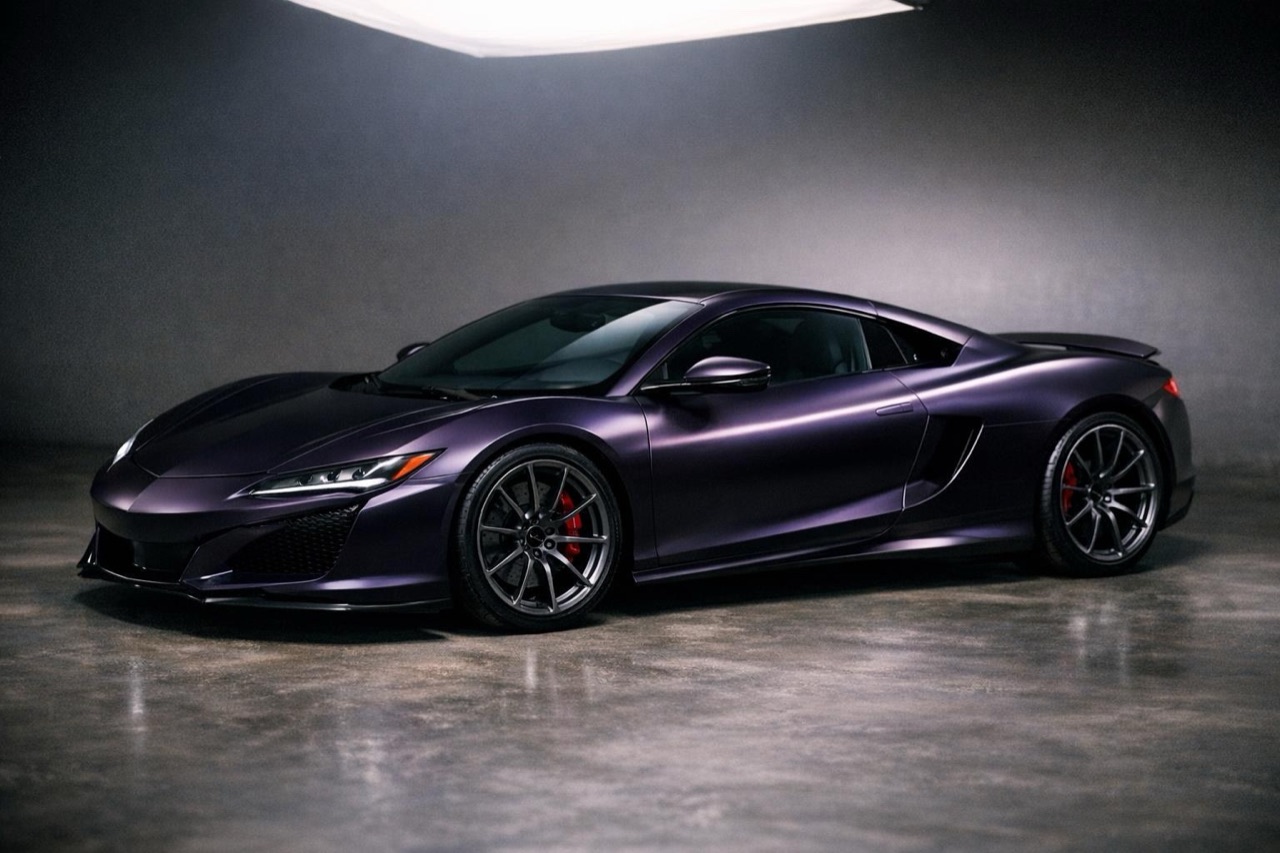
A sports car in satin midnight purple under studio light, AI car color change preview
Length
5–12 seconds
Resolution
480p · 720p · 1080p
Aspect ratio
9:16 · 16:9 · 1:1
Watermark
None on paid renders
Model
Seedance 2.0
Moderation
SeeAPI, fail-closed

See it in motion

A still render hides how paint behaves. A short clip shows the highlight travelling along the body as the camera moves.

Keep the car, change the paint

The prompt preserves the body shape, wheels and trim, so the colour comparison is about colour, not a different car.

Test several finishes

Gloss, satin and matte read differently. Render each one on the same photo and compare them side by side.

How it works

  1. 1

    Use a neutral source photo

    Daylight, no heavy filter, whole car in frame. If the current paint is strongly coloured, the model has to remove it before applying the new colour, so a clean photo helps.

  2. 2

    Name the finish, not just the colour

    Satin midnight purple is a different request from gloss purple. Finish changes how the light behaves and is the part most previews get wrong.

  3. 3

    Keep the camera slow

    A slow orbit or push-in shows the highlight moving across the panels. Fast motion hides the exact thing you are trying to evaluate.

  4. 4

    Render two or three options

    Compare a safe choice with one wildcard. The clip is cheap enough that the comparison is worth more than the render.

Start from a tested prompt

Each prompt is complete: subject, scene, camera and what must not change. Copy it or open the studio with it pre-filled.

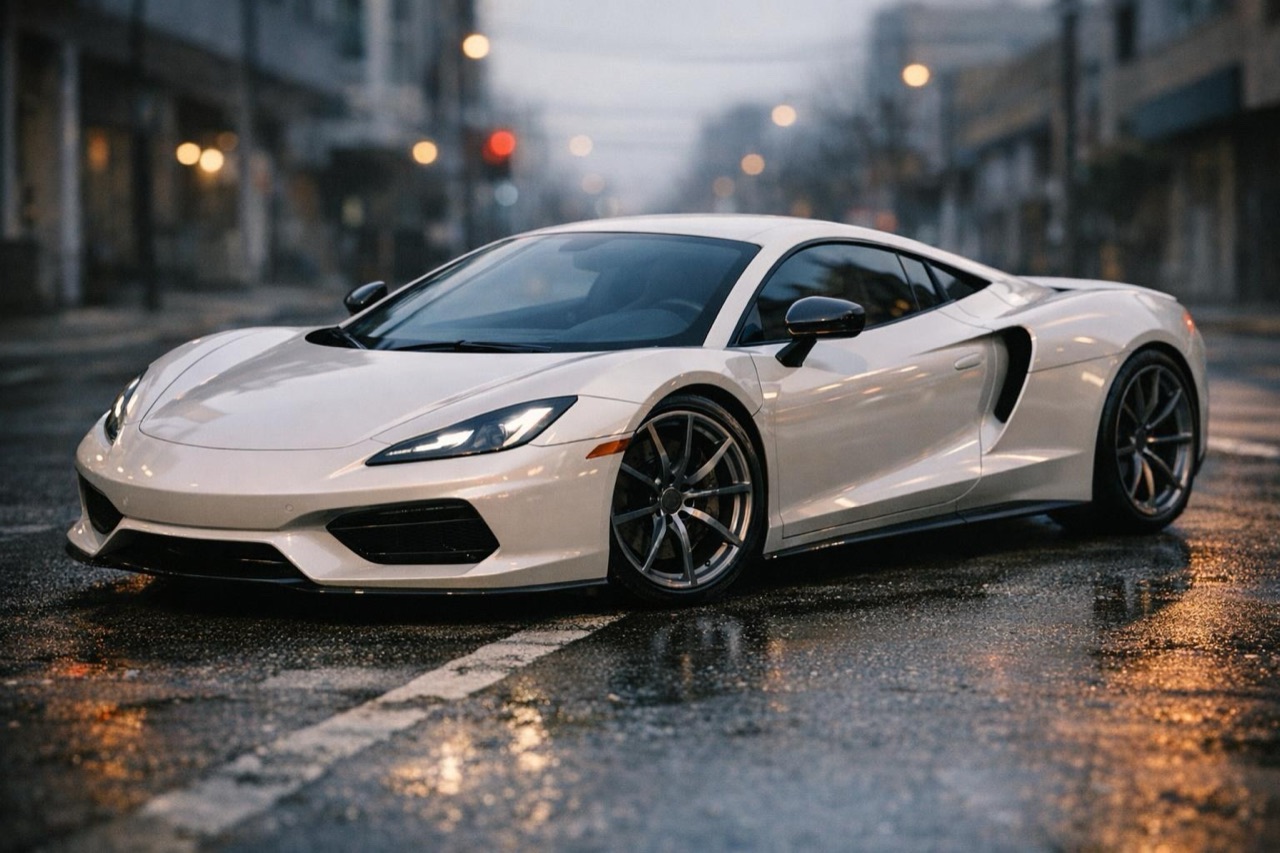
A car in a pearl white finish on a city street, AI paint colour preview

Satin Midnight

A deep satin purple with a soft highlight.

Prompt (English)

Use the car in the uploaded photo as the single hero. Change the paint to a deep satin midnight purple with a soft, brushed highlight and no mirror reflection. Keep the body shape, wheels, trim, badges and window tint exactly as photographed. A dark studio with a polished floor and one large soft overhead light. The camera orbits slowly around the front three-quarter view. No people, no text, no watermark. Vertical 9:16.

Use in studio

Pearl White

A warm pearl white with a clean daylight highlight.

Prompt (English)

Use the car in the uploaded photo as the single hero. Change the paint to a warm pearl white with a fine metallic flake and a clean daylight highlight. Keep the body shape, wheels, trim and badges exactly as photographed. A quiet city street in the early morning with soft overcast light. The camera performs a slow push-in from the front three-quarter angle. No people, no text, no watermark. Vertical 9:16.

Use in studio

Matte Graphite

A flat graphite grey with no mirror reflection.

Prompt (English)

Use the car in the uploaded photo as the single hero. Change the paint to a flat matte graphite grey with no mirror reflection and a subtle sheen along the shoulder line. Keep the body shape, wheels, trim and badges exactly as photographed. A concrete industrial yard at dusk with soft directional light. The camera tracks slowly along the side of the car. No people, no text, no watermark. Vertical 9:16.

Use in studio

What a colour preview can and cannot tell you

A preview shows how a colour reads on the shape of your car in a specific light. That is genuinely useful: it can tell you whether a dark purple disappears at night, whether a satin white washes out the body lines, or whether a bright colour overwhelms the wheels.

It cannot tell you the exact paint code, the flake size or how the finish will age. Treat the clip as a shortlist tool. Confirm the final sample on a physical test panel before the full respray.

Gloss, satin and matte

Gloss has a sharp, mirror-like highlight and strong reflections. It makes dark colours look deeper and bright colours look louder. Satin softens the highlight and gives the paint a brushed, metallic feel. Matte removes the mirror almost entirely and makes the shape read through shadow rather than reflection.

On a phone screen, the difference between satin and matte is easy to miss. Render both and look at the highlight along the shoulder line; that is where the finish shows itself.

From preview to paint shop

Take the clip to your painter as a reference, not as a colour match. Ask for a physical sample in the finish you want, and view it outdoors and under the lights where the car will actually live.

If the car has a wrap, the same workflow applies: the preview helps you choose a direction, and the wrap shop supplies the actual film samples. Keep the source photo consistent between options so the comparison is fair.

Questions people ask

Is this a real colour match?

No. It is a visual preview, not a paint code or a spectrophotometer reading. Use it to choose a direction, then confirm with a physical sample at your paint or wrap shop.

Can I preview a wrap as well as paint?

Yes. Describe the finish as gloss, satin or matte and name the colour. The render shows how that finish reads on your car, which is useful before you order film samples.

Will the wheels and trim stay the same?

The prompt asks for the wheels, trim and badges to stay exactly as photographed. Very dark wheels or small badges can still drift, so check the first render before committing.

Can I see the car at night and in daylight?

Yes. Render the same colour in two scenes, one daylight and one night, to see how the paint behaves in different light. That comparison is often more useful than a single hero shot.

Does it work on a dirty or damaged car?

It works, but the preview will preserve the dirt and damage. Clean the car or retouch the photo first if you want to judge the colour on a clean surface.

How much does a colour preview cost?

A standard 720p, 12 second render costs 35 credits. A five-second clip costs less. One-time packs start at $9.90, so comparing three colours is inexpensive.

Turn your photo into a clip

Start with the preset on this page, or write your own shot. Credits are shown before you generate, and failed renders are refunded.