Roadster AI Video Generator: turn one car photo into a stunt
 Roadster AI Video Team
What the Roadster AI video trend is, how Seedance 2.0 turns one car photo or one prompt into a 12-second ramp-jump clip, what it costs, and where the limits are.
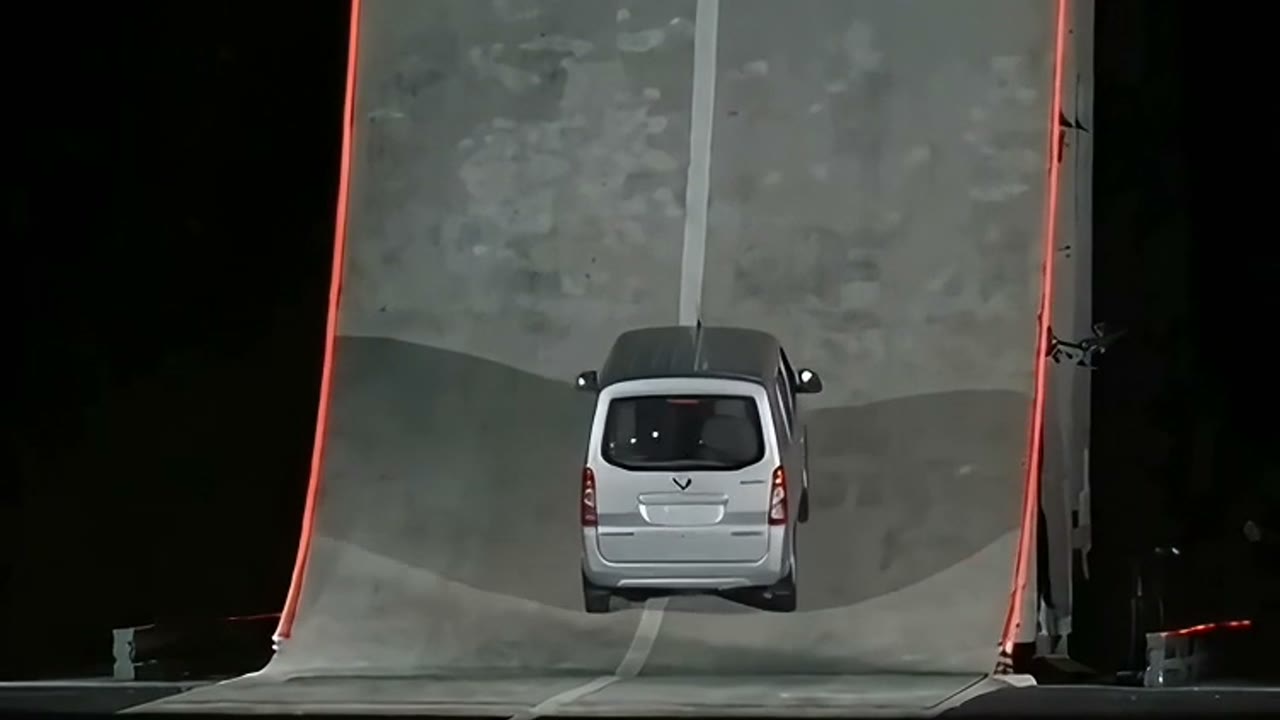
The Roadster AI video generator on this site does one job: it takes a single photo of a car — or a written description of a scene — and returns a short, fictional clip of that car climbing a ramp, launching over traffic or flipping through the air. You do not need a video crew, a stunt driver, a runway, or a reference video. You need one clear photo, enough credits for the specification you choose, and about a minute of patience while the model renders.
This page explains what the tool is, what the current trend actually shows, how the model works, what one clip costs, and where the output stops being believable. The studio sits directly below, so you can test the workflow before reading the rest.
What the Roadster AI video trend is
On 15 October 2026 Tesla revealed the next-generation Roadster in a livestream that included a ramp demonstration and an airborne flip. Within hours, clips of flying Roadsters were everywhere: over traffic jams, past police roadblocks, through city avenues, and in one memorable case, on the moon. Some of those clips were event footage. Many were not. Creators took the visual language of the reveal — cold-gas thrusters, a low ramp, a car hanging upside down for a beat — and applied it to whatever vehicle they had a photo of.
That is the trend this tool serves. The joke works because the car in the clip is recognisably yours: the same paint, the same wheels, the same slightly boring hatchback. The stunt is impossible; the vehicle is not. A Roadster AI video is therefore a fictional scene built from a real reference photo, not a recreation of Tesla's footage and not a claim that the event happened to you.
If you want the full timeline of the reveal and the fan clips, the guide on whether the flying Roadster video is real separates the event footage from the AI clips.
One photo, one action, one camera move
The model behind the studio is Seedance 2.0. It accepts a text prompt and, optionally, reference images. When a photo is present, the prompt is written to preserve the vehicle: body shape, paint colour, wheel count and any badge that was already on the car. The model then animates the action you asked for.
Three inputs decide whether the result reads as a stunt or as a melted toy:
- A clear photo of the whole car. Wheels in frame, daylight, not cropped at the roof or the bumper. A three-quarter front view is the most forgiving. A photo where the car is half-hidden behind a hedge gives the model nothing to reconstruct when the camera moves.
- One dominant action. A launch, a ramp climb, a flip, a lift over traffic. Pick one. Stacking a flip, a drift and an explosion in the same short clip is the fastest way to lose the body shape.
- One camera move. A chase camera that rises with the car, a low tracking shot, a street-level tilt. Describe where the camera is and how it moves. Without that, the model improvises, and improvised camera moves are where wheels tend to multiply.
The studio ships four presets that already encode those decisions: Launch line, Ramp flip, Night escape and Traffic boost. You can use one verbatim, edit it, or write your own prompt from scratch. The presets are not magic; they are tested prompts with one action and one camera move each.
Image-to-video versus text-to-video
The studio runs both modes. If you upload a photo, the photo anchors the vehicle and the prompt directs the action. If you leave the upload empty, the prompt has to describe the car as well as the scene: colour, body type, wheels, light, road, camera. Text-only clips are useful for storyboarding an idea before you commit a photo, but they will not preserve your actual car, because there is no car to preserve.
For a first test, upload a photo. The difference in likeness is large, and the workflow is the same price.
What one clip costs
The default specification is Standard · 720p · 12 seconds, which costs 35 credits. A 1080p 12-second clip costs 90 credits; 480p costs 20. Longer clips scale linearly and round up to a whole credit. The studio recalculates the cost the moment you change resolution, length or aspect ratio, and the number is printed next to the Generate button before you press it.
Credits come from a one-time pack or a subscription. The cheapest entry is the $9.90 Single pack: 35 credits, one standard 720p clip. The $39.90 Party Pack gives 280 credits, which is eight standard clips or three 1080p clips. Monthly Pro at $39.90 gives 350 credits — the same price, more credits — which is why the pricing page puts those two cards side by side.
There is no free tier and no daily check-in. Email accounts start at zero credits; the only way to generate is to buy a pack or subscribe. That is deliberate: a free credit drop is what scripted sign-ups farm, and the cost lands on everyone else.
What happens after you press Generate
The server charges the credits, runs the prompt and the photo through content moderation, and only then submits the job to the model provider. If moderation flags the input, the render is refused and the credits are returned. If the provider rejects the job or the job fails, the task is marked failed and the credits return to the balance they came from. You can retry with the same settings; a failed attempt does not double-charge.
While the job runs, the page polls the real task status. You will see queued, processing, then either a video or a failure. There is no fake progress bar. When the clip is ready it appears in the studio and in My videos, where you can play it and download the MP4. Renders are private to your account and carry no watermark.
Where the output stops
AI video is probabilistic. The same prompt can produce a clean launch on one run and a wobbling bumper on the next. Three limits are worth knowing before you spend credits:
- Fast rotations are hard. A full flip in three seconds is a lot of geometry to invent. A slower flip, or a launch without a rotation, keeps the body shape more stable.
- The rear of the car drifts more than the front. If the photo only shows the front three-quarter, a shot that circles behind the car has to invent the rear. Choose a camera move that stays on the side you photographed.
- Text and logos are unreliable. Do not ask the model to add a licence plate, a sponsor decal or a caption. It will either ignore the instruction or produce something that looks like a typo.
The honest framing is the one on the landing page: the reference shows the target effect, generated results vary. Treat the first render as a draft. If the composition is right but the motion is wrong, change one variable — usually the camera move — and run it again.
Start with the studio
The tool is on this page. Upload a car photo, pick a preset, confirm the credit cost, and generate. If you want the step-by-step version with photo tips and a troubleshooting table, read how to make a Roadster AI video. If you want prompt ideas before you spend anything, start with the 12 copy-ready prompts.
This clip: 35 credits · 10 clips a month for $39.90 (Pro), or 102 a year for $319
Frequently asked
Do I need a Tesla Roadster? No. Any car, truck, van, bicycle or carriage works. The model keeps the vehicle in your photo; it does not replace it with a Roadster.
Is this official Tesla footage? No. Every clip made here is a fictional AI scene. The site is independent and not affiliated with Tesla or SpaceX.
Can I post the result? Yes. You own the render and can use it commercially. Label it as AI-generated if it could be mistaken for real footage.
What if the render fails? Credits return automatically. Retry with the same settings or simplify the action.