Roadster AI video not working? 9 fixes in order
 Roadster AI Video Team
Render stuck, upload rejected, credits missing, car distorted: a ordered troubleshooting checklist for the studio, from the cheap checks to the ones that need support.
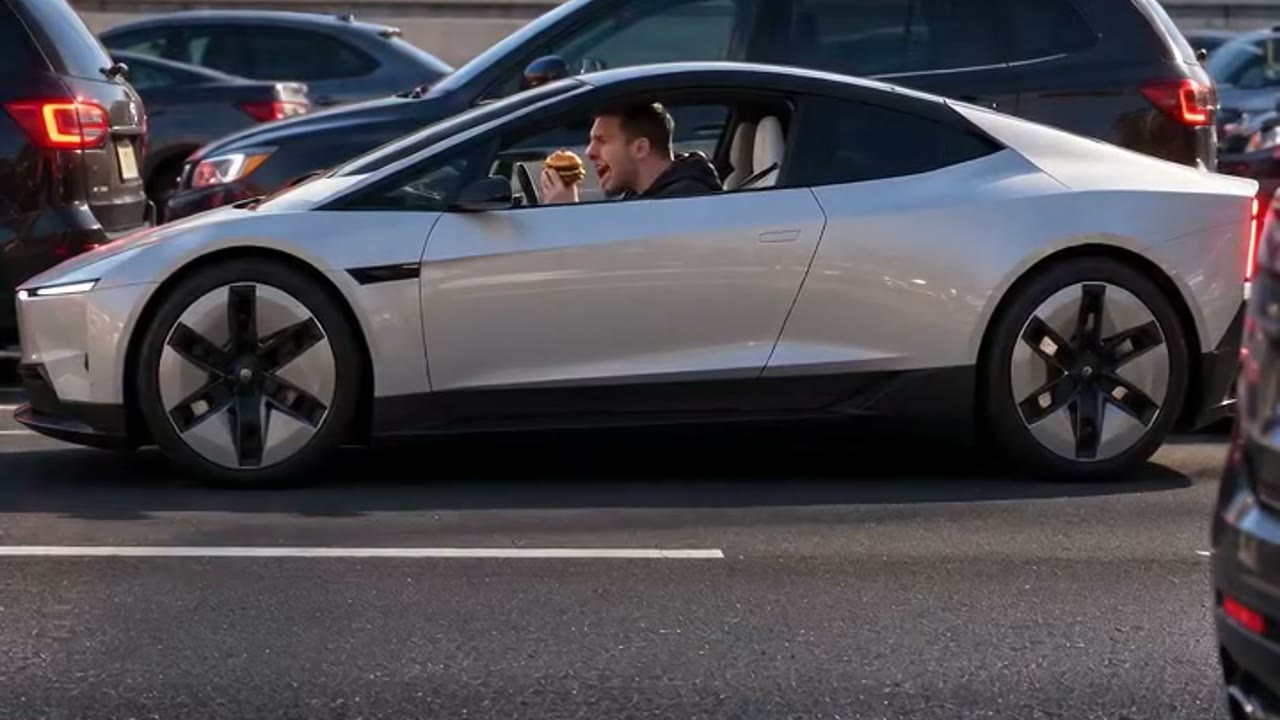
Most failed renders are not platform outages. They are a photo the model cannot read, a prompt with two actions, or a browser session that lost its sign-in. This page lists the checks in order, from the ones you can do in ten seconds to the ones that need a support ticket.
1. Confirm you are signed in
The studio accepts an upload before sign-in, but Generate needs a session. If the button says Prepare my video and the balance is zero, you may be signed out rather than out of credits. Check the header: your email should be visible. If it is not, sign in with a one-time code and return to the page. The selected photo and prompt are kept in the browser while you sign in.
2. Check the balance and the spec
The cost is printed next to the button. A default 720p 12-second clip costs 35 credits; 480p costs 20 and 1080p costs 90. If the balance is 20 and the spec is 720p, the button correctly says Prepare my video. Change the resolution to 480p or buy a pack. There is no free tier, so a new account with no purchase has zero credits.
3. Re-check the file type and size
The uploader accepts JPG, PNG and WebP up to 10 MB. A HEIC file from an iPhone camera roll will be rejected unless the phone converts it. Screenshots are usually fine. If the upload spinner never finishes, try a smaller file and a different browser tab.
4. Simplify the prompt
If the render starts and fails, the prompt is the most likely cause. Remove:
- a second action (a flip plus a drift);
- named brands or celebrities;
- violence, crashes or fire;
- text and logo instructions;
- more than one camera move.
Keep one subject, one action, one camera move and one light. Re-run at 480p to test cheaply.
5. Change the photo
A model cannot preserve a wheel it never saw. If the car is cropped, blurred, in deep shadow, or photographed from a steep angle, the render will drift. Use a daylight photo with the whole car in frame. If the car changes colour between frames, the photo's white balance may be the cause; a neutral daylight photo fixes it.
6. Wait for the real status, not the clock
A 1080p render can take several minutes. The page polls the provider and shows queued, processing, success or failed. If the status stays queued for more than ten minutes, the provider queue is busy. You can leave the page; the task continues and appears in My videos. Do not submit the same job five times, because each submission is a new charge.
7. Check My videos before you retry
A render that finished while you were away is in My videos with its status and download link. If it is there, you do not need to regenerate. If it says failed, the credits have already been returned; retry with the same settings or a simpler prompt.
8. Look at the moderation refusal
A refusal is not a bug. The prompt or the photo was flagged by the content filter. Common triggers: a person who has not consented, a celebrity likeness, a brand logo, sexual content, or wording that describes real violence. Remove the trigger and try again. If you believe the refusal is wrong, send the task id to support; do not keep resubmitting the same input.
9. Contact support with the right details
If none of the above works, email support@roadsteraivideo.pro with:
- the email on the account;
- the task id from My videos;
- the time of the attempt;
- the browser and device;
- a screenshot of the error;
- whether credits were charged.
Support can read the provider record and the credit ledger. Without the task id, the first reply will be a request for it, which adds a day.
Read the browser network panel before you retry
Open the browser's developer tools, go to Network, and repeat the failed action once. Three responses tell you where the problem is. A 401 on /api/video/generate means the session expired; sign in again and the selected photo is still in the browser. A 400 with invalid_duration means the length control sent a value outside 1–30 seconds, usually after a stale tab was left open during a deploy. A 200 with moderation_blocked means the prompt or photo was refused and the credits were returned; change the input rather than pressing Generate again. If the request never appears at all, the click did not reach the handler — reload once, then check that the button is not disabled by an upload still in flight.
Quick reference
| Symptom | First check | Fix | | ---------------------------- | --------------------- | -------------------------------------- | | Button says Prepare my video | Balance and spec | Lower the resolution or buy credits | | Upload rejected | File type and size | Convert to JPG/PNG, keep under 10 MB | | Stuck on queued | Provider status | Wait; check My videos | | Failed after processing | Prompt complexity | One action, one camera, re-run at 480p | | Car shape drifts | Photo quality | Daylight, whole car, simpler camera | | Credits missing | My videos status | Failed tasks refund automatically | | Cannot sign in | Email delivery | Check spam, resend the code after 60s | | Moderation refusal | Prompt/photo triggers | Remove people, brands, violence |
Prevent the next failure
The cheapest workflow is: 480p draft, 720p approval, 1080p final. Change one variable per attempt. Keep the protection sentence in the prompt. Use a daylight photo. Those four habits remove most of the failures on this page.
The studio is below if you want to test a simplified prompt now.
This clip: 35 credits · 10 clips a month for $39.90 (Pro), or 102 a year for $319